TP-Link Archer C7 (rev. 2.0): From openwrt back to stock firmware
All actions were performed on a Windows 11 machine.
Context
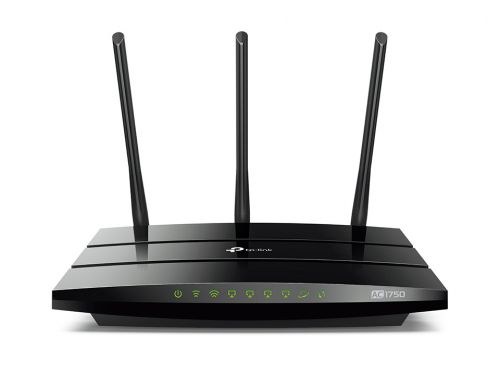
When attempting to flash the stock firmware back into a TP-Link Archer C7 (rev. 2.0) running OpenWrt 22.03.5, I always ended up with a blinking brink but not a functionnal device.
The procedure to boot the device into recovery is simply to power it on with the WPS/Reset button in the back pressed.
TFTP setup
I'm using the tftpd64 server from https://pjo2.github.io/tftpd64/ to transfer the firmware with C:\Users\greg\tftp\ as my working directory. Every additionnal .exe binary or firmware .bin file are in this folder.
Windows firewall
Since you will be connected directly to a device that gives you no IP via DHCP, and no access to internet, Windows will not be able to identify the network and will consider it as public and unsecure by default.
Make sure to either temporary disable your Windows firewall on public networks will attempting to flash firmware, or allow tftpd64 on public networks.
TFTP server IP
Depending on firmware and hardware combination, the device will try to contact either 192.168.0.86 or 192.168.1.86 to download the firmware.
One way to make sure if 1) the device is in recovery mode and 2) which IP it is trying to reach is to use a network capture tool such as Wireshark (https://www.wireshark.org/) and capture the traffic on the interface connected to the device.
What you are looking for are TFTP read requests. They will give you:
- The source IP of the request (the device IP)
- The destination IP of the request (the TFTP server IP)
- The name of the requested file on the TFTP server

The destination IP is the one you need to set on your computer, and the name of the file is what you need to rename the file you are trying to flash. In my case, my laptop is configured with the 192.168.1.86 IP and whatever I'm trying to flash I rename to ArcherC7v2_tp_recovery.bin.
If your device is "normally" connected to your domestic network (via WiFi for instance), make sure to disable it before attempting to flash if it has an address IP in the 192.168.0.0/24 or 192.168.1.0/24 range. Otherwise your computer may use the wrong interface for TFTP transfer.
Failed attempts
European firmware
What I've tried is using the recovery procedure via TFTP and flashing European firmware version 180305 or 160616 directly downloaded from https://www.tp-link.com/en/support/download/archer-c7/v2/#Firmware but upon rebooting, I couldn't access the web UI of the router, it was not responsive to pings and the four LAN ports LED were blinking non stop.
US firmware
I also tried flashing the US firmware version 180114 from https://www.tp-link.com/us/support/download/archer-c7/v2/#Firmware with the same results.
Stripped firmware
After considering properly reading the OpenWrt page on the device, especially the Return to Factory Firmware section, I learnt that if the .bin image downloaded from the official website was containing the keyword boot, the beginning of the firmware should be stripped before attempting to flash it, which I did.
I grabbed the dd.exe binary for Windows from http://www.chrysocome.net/dd and the extract ArcherC7v2_en_eu_3_15_3_up_boot(180305).bin from the archive downloaded on the official website.
PS C:\Users\greg\tftp> .\dd.exe if=ArcherC7v2_en_eu_3_15_3_up_boot(180305).bin of=ArcherC7v2_tp_recovery.bin skip=257 bs=512
rawwrite dd for windows version 0.6beta3.
Written by John Newbigin <jn@it.swin.edu.au>
This program is covered by terms of the GPL Version 2.

skip to 131584
31744+0 records in
31744+0 records out
After flashing the stripped down version of the firmware, upon rebooting I ended up with a different result. The LED of the LAN port I was connected to seemed to be working perfectly but the system LED was off, meaning that there was a problem with the system
Successful attempt
Reading the documentation further, it is recommended to use the sysupgrade command directly on the device to flash the stripped version of the firmware.
The plan is the following:
- Grab the latest version of the OpenWrt firmware for the Archer C7 from https://openwrt.org/toh/tp-link/archer_c7#installation
- Extract it and rename it to
ArcherC7v2_tp_recovery.bin - Flash it through TFTP and let the device reboot
- Make sure the device is back into a working state by accessing LuCi at
http://192.168.1.1(depending on which IP the recovery targets, you may need to change your network interface IP) - Grab the latest version of the stock firmware from the official website
- Extract it
- Use the
ddutility to create a stripped version of the firmware namedstripped.bin(or something similarly simple)
For instance:
PS C:\Users\greg\tftp> .\dd.exe if=ArcherC7v2_en_eu_3_15_3_up_boot(180305).bin of=stripped.bin skip=257 bs=512
- Transfer the
stripped.binfile to the device (192.168.1.1) via SCP in the/tmpfolder (using WinSCP for instance) - Connect to the device (
192.168.1.1) via SSH (using the built-in SSH client or Putty) - Execute the forced
sysupgradecommand to flash the stripped firmware (the-Foption is required to force the upgrade from an image without metadata)
PS C:\Users\greg> ssh root@192.168.1.1
The authenticity of host '192.168.1.1 (192.168.1.1)' can't be established.
ED25519 key fingerprint is SHA256:<REDACTED>.
Are you sure you want to continue connecting (yes/no/[fingerprint])? yes
Warning: Permanently added '192.168.1.1' (ED25519) to the list of known hosts.


BusyBox v1.35.0 (2023-04-27 20:28:15 UTC) built-in shell (ash)

  _______                     ________        __
 |       |.-----.-----.-----.|  |  |  |.----.|  |_
 |   -   ||  _  |  -__|     ||  |  |  ||   _||   _|
 |_______||   __|_____|__|__||________||__|  |____|
          |__| W I R E L E S S   F R E E D O M
 -----------------------------------------------------
 OpenWrt 22.03.5, r20134-5f15225c1e
 -----------------------------------------------------
=== WARNING! =====================================
There is no root password defined on this device!
Use the "passwd" command to set up a new password
in order to prevent unauthorized SSH logins.
--------------------------------------------------
root@OpenWrt:~# sysupgrade -F /tmp/tmp/tplink.bin
Thu Apr 27 20:31:44 UTC 2023 upgrade: Image metadata not present
Image check failed but --force given - will update anyway!
Thu Apr 27 20:31:45 UTC 2023 upgrade: Saving config files...
Thu Apr 27 20:31:45 UTC 2023 upgrade: Commencing upgrade. Closing all shell sessions.
Command failed: Connection failed
root@OpenWrt:~# Connection to 192.168.1.1 closed by remote host.
Connection to 192.168.1.1 closed.
- Give some time to the device to reboot a couple times until you end up with the system LED blinking, the WiFi LEDs on and the LED of the network port you are connected to on as well. Your device should be back to stock firmware!
- Change your IP address into the
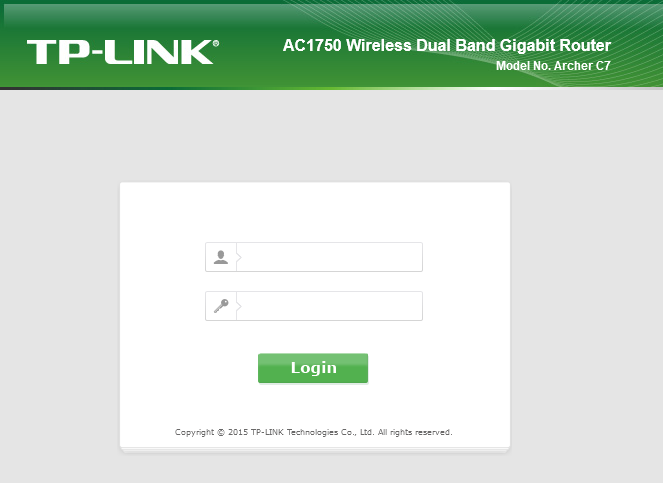
192.168.0.0/24network if necessary and access the device web UI athttp://192.168.0.1, hopefully it display the login page (default credentials areadmin/admin)