
Regenerate a default self-signed certificate on a Synology SRM device
Context
If you wish to remove a custom certificate, or restore a self-signed certificate with Synology's default values, you can't directly do it from the SRM web UI.
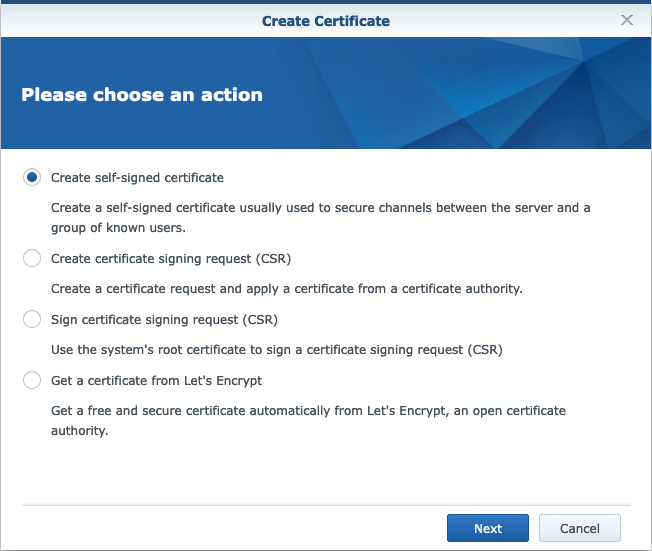
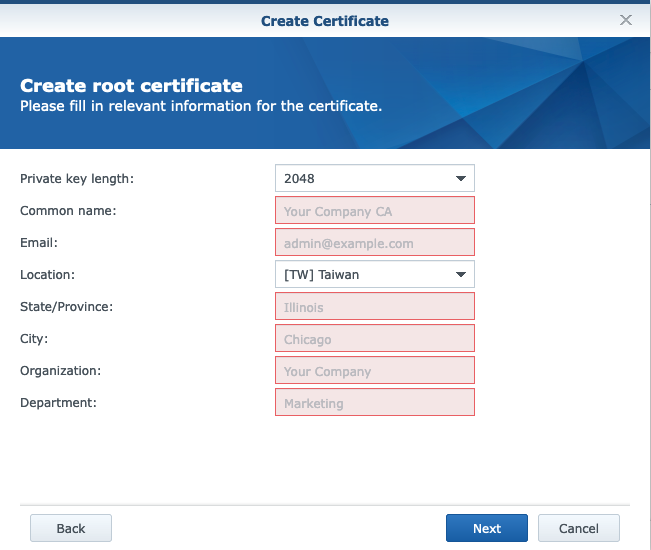
Generate using the CLI
SSH
Enable SSH access to your device (Control Panel > Services > System Services) and connect to your device.
ssh <user>@<ip>
Could not chdir to home directory /var/services/homes/<user>: No such file or directory


BusyBox v1.16.1 (2022-08-19 13:40:57 CST) built-in shell (ash)
Enter 'help' for a list of built-in commands.

<user>@SynologyRouter:/$
Root
You will need to be root to generate a new certificate.
<user>@SynologyRouter:/$ sudo -i

We trust you have received the usual lecture from the local System
Administrator. It usually boils down to these three things:

    #1) Respect the privacy of others.
    #2) Think before you type.
    #3) With great power comes great responsibility.

Password:


BusyBox v1.16.1 (2022-08-19 13:40:57 CST) built-in shell (ash)
Enter 'help' for a list of built-in commands.

root@SynologyRouter:~#
mkcert
root@SynologyRouter:~# cd /usr/syno/etc.defaults/ssl
root@SynologyRouter:/usr/syno/etc.defaults/ssl# ./mkcert.sh
STEP1: Generating RSA private key for CA (2048 bit) [ca.key]
Generating RSA private key, 2048 bit long modulus (2 primes)
.......................................................................................................+++++
................................................................+++++
e is 65537 (0x010001)

______________________________________________________________________
STEP 2: Generating X.509 certificate signing request for CA [ca.csr]
You are about to be asked to enter information that will be incorporated
into your certificate request.
What you are about to enter is what is called a Distinguished Name or a DN.
There are quite a few fields but you can leave some blank
For some fields there will be a default value,
If you enter '.', the field will be left blank.
-----
1. Country Name             (2 letter code) [XY]:2. State or Province Name   (full name)     [Snake Desert]:3. Locality Name            (eg, city)      [Snake Town]:4. Organization Name        (eg, company)   [Snake Oil, Ltd]:5. Organizational Unit Name (eg, section)   [Certificate Authority]:6. Common Name              (eg, CA name)   [Snake Oil CA]:7. Email Address            (eg, name@FQDN) [ca@snakeoil.dom]:
______________________________________________________________________
STEP 3: Generating X.509 certificate for CA signed by itself [ca.crt]
Signature ok
subject=C = TW, ST = Taiwan, L = Taipei, O = Synology Inc., OU = Certificate Authority, CN = Synology Inc. CA, emailAddress = product@synology.com
Getting Private key
Verify: matching certificate & key modulus
Verify: matching certificate signature
/usr/syno/etc/ssl/ssl.crt/ca.crt: OK

______________________________________________________________________
STEP 4: Generating  private key for SERVER (2048 bit) [server.key]
Generating RSA private key, 2048 bit long modulus (2 primes)
...........+++++
.....................+++++
e is 65537 (0x010001)

______________________________________________________________________
STEP 5: Generating X.509 certificate signing request for SERVER [server.csr]
You are about to be asked to enter information that will be incorporated
into your certificate request.
What you are about to enter is what is called a Distinguished Name or a DN.
There are quite a few fields but you can leave some blank
For some fields there will be a default value,
If you enter '.', the field will be left blank.
-----
1. Country Name             (2 letter code) [XY]:2. State or Province Name   (full name)     [Snake Desert]:3. Locality Name            (eg, city)      [Snake Town]:4. Organization Name        (eg, company)   [Snake Oil, Ltd]:5. Organizational Unit Name (eg, section)   [FTP Team]:6. Common Name              (eg, FQDN)      [ftp.snakeoil.dom]:7. Email Address            (eg, name@fqdn) [ftp@snakeoil.dom]:
______________________________________________________________________
STEP 6: Generating X.509 certificate signed by own CA [server.crt]
Signature ok
subject=C = TW, ST = Taiwan, L = Taipei, O = Synology Inc., OU = FTP Team, CN = SynologyRouter, emailAddress = product@synology.com
Getting CA Private Key
Verify: matching certificate & key modulus
Verify: matching certificate signature
/usr/syno/etc/ssl/ssl.crt/server.crt: OK
______________________________________________________________________
Restart the web server
You need to restart the http-sys service. (You can list all the service names with synoservicecfg --list)
root@SynologyRouter:/usr/syno/etc.defaults/ssl# synoservicectl --restart httpd-sys
httpd-sys restarted.
If you reload the web UI it should service you the self-signed certificate.
Disable SSH
Do not forget to disable SSH access if you do not need it.